
 Claude Code
Connect Claude Code to all of your calendars
Kalender Sync connects Claude Code to all of your calendars: Outlook, Google, Apple, GMX, WEB.DE and more. With one connector you run your calendars straight from the CLI or from the agents you build yourself. Create events, check availability, plan your day, all through a single interface.
Just copy this command into your CLI
claude mcp add --transport http kalender-sync https://app.kalender-sync.de/mcp Reaches these calendars
Add the server
Run the command once in your project and the installation part is done. No keys, no config file to write, no restart.
claude mcp add --transport http kalender-sync https://app.kalender-sync.de/mcp Sign in
Type /mcp, pick kalender-sync and sign in through your browser. While you are there you set how much the agent may see per calendar and whether it may create events.
/mcp Work from the terminal
Just tell it the call should happen on Tuesday at ten. It checks every account and books it without you switching windows. That puts you among the more than 1,000 people who run their calendar from the terminal.
Every calendar on one command
Instead of building an integration per provider, your agent hangs off a single connection. Outlook, Google, Apple, GMX, WEB.DE, mailbox.org, kSuite and Posteo come together in Kalender Sync, and no credentials for any of them sit in your project. When a calendar is added you grant it on our side and your setup stays exactly as it is.
From agent to assistant
The agent already sitting on your code now knows your week too. It finds free blocks, plans the standup and keeps review time clear, all without you leaving the terminal.
You decide what it may see
For each calendar you choose between busy, title with time, and full details. What you don't grant doesn't exist for the agent, and your repository is none of our business anyway.
And you decide what it may do
Whether it only looks or also books is your call, per calendar. Every call is logged with a timestamp, so even after a long session you can see exactly what happened. Hosted in Germany.
Tutorial
This is how you connect Claude Code.
The video runs through the whole thing once: run the command, sign in through the browser, grant your calendars and create the first event straight from the terminal.
Read the guide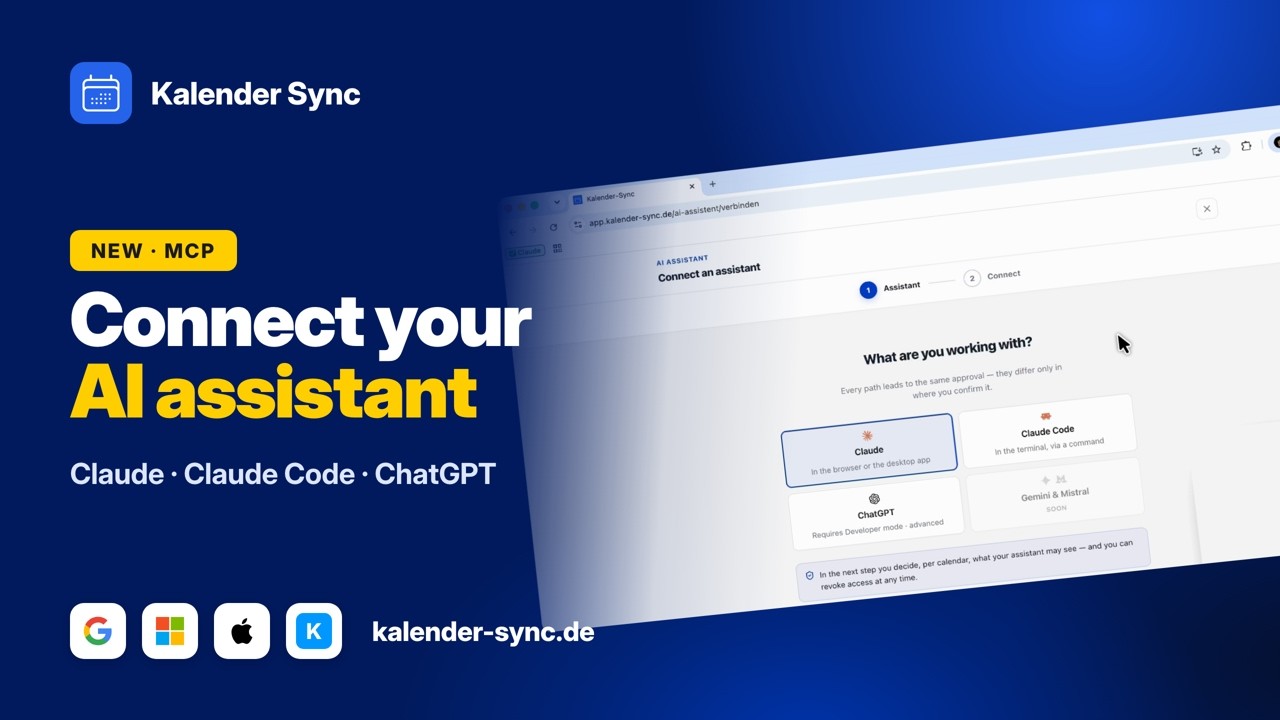
Clicking play loads YouTube. Data will be sent to Google.
Examples
What you can ask from the terminal
You stay in the session you are working in anyway and phrase it exactly the way you would say it to a colleague.
See the working day
Before you dive into a task, it is worth asking how much of the day is actually still yours. The answer covers every connected calendar.
- What is still on today?
- When is my next meeting?
- How full is Thursday?
Find a window
For work that has to happen in one go you don't need a gap, you need a block. That is exactly what you can ask for, and have it held for you.
- Where are two quiet hours this week?
- When is the team fully free?
- Find a window for the release.
Set events
What you would otherwise click together in the calendar you simply say here. If you allowed creating for that calendar, the event is in it afterwards.
- Put standup at 9:15.
- Block two hours for the review.
- Keep Friday afternoon clear for me.
Wall of Love
Don't just take our word for it.
Our users are our best and most honest ambassadors. See why they wouldn't go back.

„With three companies I used to dig through three calendars whenever somebody asked for a meeting. Today I ask once and get an answer that already accounts for all of them."

„I am on job sites all day and rarely near a computer. When a customer calls, I just say the appointment into my phone afterwards and it lands in the right calendar with the address."

„I am in the terminal anyway, so that is where I plan now. One sentence and the four hours for the rebuild are in my calendar without me switching windows."

„I started by only letting it look things up, because I was sceptical. These days it prepares half my week and I mostly just correct things."

„I am honestly not a tech person and did not want anything complicated. I type in when I would like to hold office hours and get three suggestions that actually work."

„Sending clients meeting options was always the task that got left for later. Now the email comes back written and already checked against the agency and project calendars."
FAQ
Frequently asked questions about Claude Code
What is the agent allowed to do in my calendar?
You set that per calendar. There is one switch for reading and one for creating, and the second one starts off. A popular mix is: read the company calendar, write to your own work calendar.
Every call is logged with a timestamp. Especially when an agent works through longer tasks on its own, that is the reassuring place to look afterwards.
What the assistant may doDoes Claude Code see my code through this connection?
No. Only calendar data travels over this connection; there is simply no path through which files or terminal output could reach us.
What arrives here is what you have it book: the title, time and duration of an event. Name a block Refactor payments module and that title is what lands in the calendar, nothing else.
Do I have to run the command in every project?
The command applies to the project you run it in, so a second repository needs it again. That is one line, not a new setup.
The grant itself hangs off your account with us. Calendar selection and permissions don't have to be set twice, and revoking takes effect immediately on every machine.
Read it step by stepCan I build this into my own agents?
Yes, that is exactly what the interface is for. Anything that speaks the Model Context Protocol talks to the same server, whether you are in the terminal or writing your own agent.
For automations without a browser there is also an access key your agent signs in with, so nobody has to sit next to it.
Technical referenceHow far does the view into the calendar reach?
Availability comes in stretches of up to 92 days, and it can look back up to a year. Quarterly planning is a single call.
Text search returns the 50 nearest hits and flags when there were more, so the agent notices by itself when it should narrow the range.
What does it cost?
From 5 euros a month. What you need depends mostly on how many calendars you want to connect: the Basic plan covers three accounts, Professional as many as you like.
The assistant itself costs nothing extra, it is part of every plan. You can try the whole thing for seven days, without a credit card and without anything renewing on its own.
See the plansConnect your other agents too
Kalender Sync sits behind an open interface, so whatever else you use reaches the same calendars in the same way. Every agent gets its own access with its own visibility, and you can end each one separately.


Ready for an agent that knows your week?
Start for freeCurrently supported providers
GoogleMicrosoftApple iCloudKSuiteGMXWEB.DEmailbox.orgiCal-Feeds