


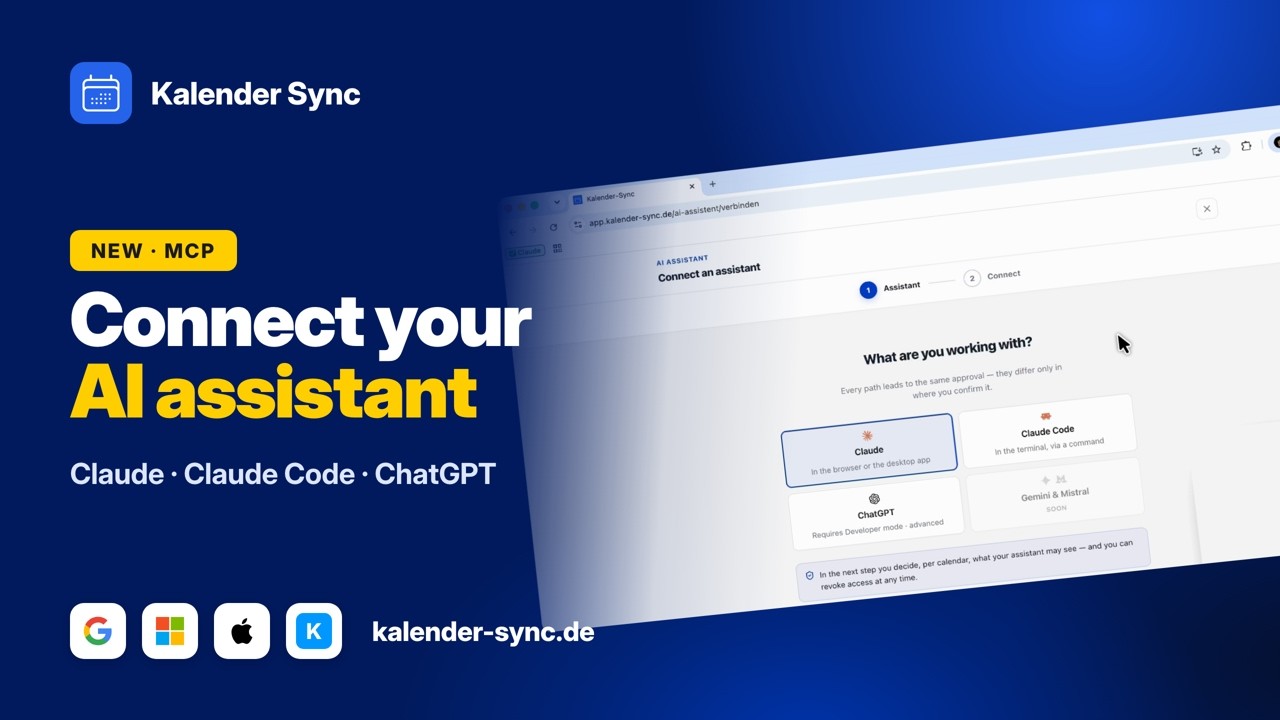
“Am I free Thursday at 2pm?” is exactly the kind of question you want an assistant for. Claude can answer it, but only if it knows your calendars. All of them: the work calendar in Outlook, the personal one on Google, maybe a family calendar on iCloud. Connect just one of them and you get answers built on half the picture, which is worse than no answer at all, because it feels reliable.
This guide connects Claude to all of your calendars at once, in about five minutes. Without creating a Google Cloud project, editing JSON files, or maintaining a separate connector per provider.
The three ways to do this
There are currently three sensible routes for giving Claude calendar access:
- Anthropic’s official connectors for Google Calendar and Outlook. Quick to set up, but it’s one connector per provider, each with access to the whole account. If you use Google and Outlook and iCloud, you’re connecting three services separately, and iCloud isn’t offered at all.
- A self-hosted MCP server (for example, the open-source Google Calendar projects on GitHub). Maximum control, but you’ll need your own OAuth project in the Google Cloud Console, API keys, and then the whole dance again for every additional provider. The forums are full of people who lost an afternoon to this.
- A hosted multi-calendar connector like our AI assistant: a single connector with all your calendars behind it (Google, Outlook, iCloud, GMX, WEB.DE, mailbox.org, Posteo, STRATO, KSuite and iCal feeds). You decide per calendar what Claude may see, and you can revoke access with one click.
The rest of this guide covers route 3, because it’s the only one that solves the actual problem: your availability doesn’t live in one calendar, it lives in the sum of all of them.
What you’ll need
- A Kalender Sync account. If you don’t have one yet, you create it during setup. Reading availability works on every plan, including the free one.
- Claude on the web, as a desktop or mobile app.
- Five minutes, honestly counted, including the moment of thinking about which calendars you actually want to share.
Step 1: Open Kalender Sync in Claude’s directory
Open Kalender Sync in Claude’s connector directory or search for “Kalender Sync” under Connectors in Claude. Click Connect. Claude points out that this is a community connector; that applies to every connector not built by Anthropic itself.
Step 2: Sign in and pick your calendars
Claude sends you to Kalender Sync. Sign in; if you don’t have an account yet, you create one on the way (no credit card) and connect your calendars right there. Then you choose which calendars Claude is allowed to see at all. It’s the most important step of the whole setup, so a quick aside:
Calendars you don’t share simply don’t exist for Claude. They never appear in any answer, not even as “there’s something here I’m not allowed to see”. If you have a calendar that is none of the AI’s business (most people have one), you just leave it out and never think about it again.
If the directory isn’t available in your environment (in some company setups, for instance), add the connector manually: in Claude, go to Settings → Connectors → Add custom connector and enter https://app.kalender-sync.de/mcp.
Step 3: Confirm on the consent screen
The consent screen is where the access is actually created, and where you set the detail level for each shared calendar:
| Level | Claude sees … |
|---|---|
| Busy only | that a time slot is blocked. No title, no location. |
| Title and time | the event title on top of that. |
| Full details | description and location as well. |
When in doubt: busy only. It’s entirely sufficient for “am I free?” questions, and Claude never learns that Tuesday’s blocker is called “therapy”. You can change the level anytime, so this isn’t a decision for life.
One detail that mattered to us: attendees, attachments and links of your events are never transmitted, not even on “full details”.
What you can ask Claude now
From here on, Claude answers availability questions across all shared calendars, read live from each provider rather than from a copy:
- “Am I free Thursday at 2pm?”
- “Where do I have two uninterrupted hours this week for deep work?”
- “Suggest three slots for a client call next week, mornings only.”
- “How packed is my Friday, roughly?”
It sounds mundane, but it completely changes scheduling over email: instead of bouncing between your mail client and three calendar tabs, you dictate the request to Claude and get suggestions that are actually free. In every calendar.
Letting Claude create events (all plans)
You can additionally enable write access per calendar. Claude will then create events on request: “Put in a meeting with Sarah, Tuesday 10 to 11.”
The boundary here is technical, not just a policy: without the additional permission “change and delete existing events”, Claude can only modify or delete events it created itself. With that permission, full details and a Google or Microsoft calendar, it can also edit existing events and respond to invitations. Our server checks this on every call, and deleting is marked as an action that needs confirmation, so Claude asks you first by default. For calendars where nothing existing should be touched, you simply turn the second permission off.
Two behaviours worth knowing: if a new event overlaps with an existing one, it still gets created, but Claude receives the overlap as a warning and tells you. And every calendar starts with the maximum available permissions when you grant access; you switch writing off per calendar where you don’t want it.
Staying in control: revocation and the access log
- Revocation: one click on “Revoke” under AI Assistant, effective immediately. There’s also a kill switch that revokes every access at once. Important: deleting the connector inside Claude only disconnects it locally; the authoritative revocation is the one in Kalender Sync.
- Access log: every query is logged. What’s recorded is that and what was queried, never the content of your events. On the Professional plan you can export the log as CSV, for example for your IT department.
- Auto-expiry: access that goes unused for an extended period expires on its own.
Bonus: Claude Code in the terminal
If you use Claude Code, the whole thing is one command:
claude mcp add --transport http kalender-sync https://app.kalender-sync.de/mcpThen type /mcp in Claude Code, pick kalender-sync, hit Authenticate, and confirm the same consent screen as above. From then on you can ask mid-coding whether your afternoon still has room for a focus block. The full guide with scope tips and dev workflows has its own article.
Frequently asked questions
Does Claude need my calendar password? No. The connection runs on OAuth: you sign in to Kalender Sync and confirm the consent there. Claude never sees credentials for your calendar accounts.
Does this work with iCloud? Yes, and that’s genuinely one of the most common reasons people end up with us: there is no official Claude connector for iCloud. With us, iCloud is included from the Basic plan, along with GMX, WEB.DE and mailbox.org.
What about GDPR? Kalender Sync runs on servers in Germany, the access log stores no event content, and every plan includes a DPA for business use. Details are on the product page.
What does it cost? Reading availability and finding events works on every plan, including free. Creating events starts with Basic (€5/month). The full breakdown is on the pricing page.
No account yet? Sign up free, connect your calendars, connect Claude. And if you’d like to understand what MCP actually is first: here’s our plain-language explainer.
Transcript: the tutorial video in text form
Lightly cleaned excerpt from the tutorial embedded above – starting at the Claude chapter (0:47):
Show transcript
[0:47] We start with the normal Claude: click continue, then “Connect to Claude”. A window opens – sign in to your Anthropic account if you haven’t – and click “Add”.
[1:16] Now I get the window where I pick which calendars I want to share. I share this calendar with all details, and the agent is allowed to create and manage events for me. I name this access “my intelligent assistant” and click “Allow access” – and the connection is established.
[2:17] You can also manage it inside Claude: toggle whether it may always write appointments for you, or whether you want to approve each action manually.
[2:45] Back in Kalender Sync we see it: “My intelligent assistant” writes to one calendar, with all details, and can create events. Below are the access logs – whenever it creates, deletes or manages something for me, it all shows up here.